Shower

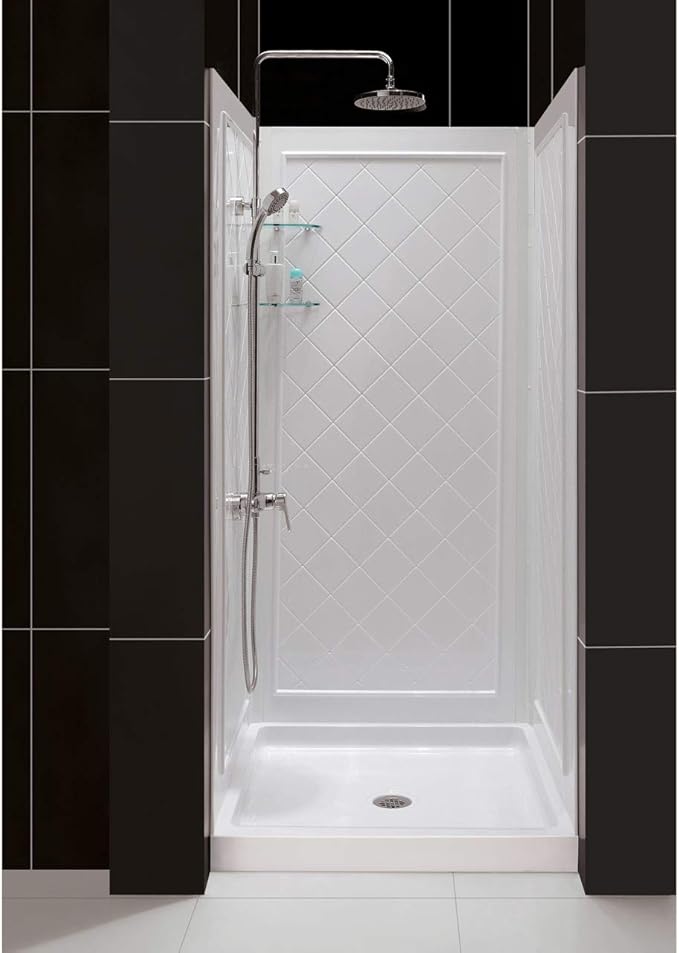
DreamLine 36″ × 36″ Shower Base & QWALL‑5 Backwall Kit

Model: DL‑6194C‑01
Brand: DreamLine
Color: White
Material: Acrylic / ABS
Kit Includes: 36″ × 36″ Single‑Threshold Shower Base + QWALL‑5 Backwall Panels
Product Link:

View on Amazon

DreamLine 36x36 Shower Base and QWALL-5 Backwall Kit

Product Dimensions

Overall Kit Size (D × W × H): 36″ × 36″ × 76.75″
Shower Base: 36″ × 36″ (Center Drain)
Backwall Panels: Trim‑to‑fit design

Weights

Total Weight: 79.4 lbs

Key Features

  • SlipGrip textured floor surface for improved safety
  • High‑gloss, non‑porous acrylic for easy cleaning
  • Backwall panels made from Acrylic/ABS
  • Backwalls install over a solid surface (not directly to studs)
  • Base installs directly to studs; cUPC certified
  • Trim‑to‑size sidewall design for flexible installation
  • Lifetime Limited Warranty (base), 1‑year Limited Warranty (backwalls)

Washer and Dryer Combo

https://www.amazon.com/COMFEE-Washing-Machine-Overnight-Full-Automatic/dp/B09QFYYG56/


COMFEE’ 24″ Washer and Dryer Combo 2.7 cu.ft 26lbs Washing Machine Steam Care, Overnight Dry, No Shaking Front Load Full-Automatic Machine, Dorm White


Technical Details

Item Weight ‎161 Pounds
Annual Energy Consumption ‎90 Kilowatt Hours Per Year
Included Components ‎water inlet hose
Controller Type ‎Fully Automatic
Number of Drying Cycles ‎1
Number of Washing Cycles ‎5
Washer Dispenser Options ‎Single-compartment (Fabric Softener only)
Laundry Appliance Drum Material ‎steel
Operation Mode ‎Automatic
UPC ‎810040948954
Manufacturer ‎Comfee American Company
Part Number ‎CLC27N3AWW
Item Weight ‎161 pounds
Product Dimensions ‎25.2 x 23.4 x 33.5 inches
Item model number ‎CLC27N3AWW
Style ‎Washing Machine
Material ‎Plastic, Steel
Power Source ‎Electric
Installation Method ‎Free Standing
Item Package Quantity ‎1
Sound Level ‎63 Decibels
Handle/Lever Placement ‎Right
Display Style ‎LED
Special Features ‎Softener Dispenser
Batteries Required? ‎No
Warranty Description ‎One Limited Year Warrenty from original purchase date

Importing Categories in WordPress: A Simple and Effective Solution

I got this idea from: Importing Categories in WordPress: A Simple and Effective Solution – Noman Shah – AI Visionary | Inventor | Author | Entrepreneur

I built upon his solution to fit my website.

Introduction:

Organizing content efficiently is crucial for any blog or website. Categories play a significant role in this by helping readers navigate through different topics. However, importing a large number of categories into WordPress can be challenging. I recently faced this issue and tried several out-of-the-box solutions. Here’s how I overcame the problem with a simple tweak that made my life easier.

The Problem:

I needed to import a large number of categories into my WordPress site. Doing this manually was not an option due to the sheer volume. Naturally, I turned to plugins that promised to handle CSV imports effortlessly. However, I quickly encountered several roadblocks:

  • Some plugins failed to upload the CSV files correctly.
  • Others required paid versions to access CSV import features.

Possible Out-of-the-Box Solutions:

  1. WP All Import: Initially, I tried WP All Import, a popular plugin that handles various import tasks. Unfortunately, the free version doesn’t support taxonomy imports, which includes categories.
  2. WP Ultimate CSV Importer: Next, I looked into WP Ultimate CSV Importer. While it’s a robust tool, the CSV import feature for taxonomies is locked behind a paywall.

These limitations prompted me to think outside the box. I needed a solution that didn’t rely on paid plugins or cumbersome workarounds.

The Solution:

After some research and a bit of experimentation, I devised a simple yet effective solution. The idea was to convert my categories CSV into a PHP script, add it to my theme’s functions.php file, and execute it by opening a page. Here’s how I did it:add it to my theme’s functions.php file, and execute it by opening a page. Here’s how I did it:

  1. Convert CSV to Script: First, I prepared a list of categories and subcategories in an array format. Here’s an example with three main categories and three subcategories in each:
function create_blog_categories() {
    $categories = [
        ['name' => 'Technology', 'slug' => 'technology', 'description' => 'All about technology', 'parent' => ''],
        ['name' => 'AI and Machine Learning', 'slug' => 'ai-machine-learning', 'description' => 'Advancements in AI and ML', 'parent' => 'Technology'],
        ['name' => 'Blockchain', 'slug' => 'blockchain', 'description' => 'Blockchain technology and its applications', 'parent' => 'Technology'],
        ['name' => 'Health', 'slug' => 'health', 'description' => 'Health and wellness tips', 'parent' => ''],
        ['name' => 'Mental Health', 'slug' => 'mental-health', 'description' => 'Mental health awareness and tips', 'parent' => 'Health'],
        ['name' => 'Physical Health', 'slug' => 'physical-health', 'description' => 'Physical health and fitness', 'parent' => 'Health'],
        ['name' => 'Travel', 'slug' => 'travel', 'description' => 'Travel tips and destination guides', 'parent' => ''],
        ['name' => 'Travel Tips', 'slug' => 'travel-tips', 'description' => 'Tips for a better travel experience', 'parent' => 'Travel'],
        ['name' => 'Destination Guides', 'slug' => 'destination-guides', 'description' => 'Guides to various travel destinations', 'parent' => 'Travel']
    ];

    foreach ($categories as $category) {
        $parent_id = 0;
        if (!empty($category['parent'])) {
            $parent = get_term_by('name', $category['parent'], 'category');
            $parent_id = $parent ? $parent->term_id : 0;
        }

        if (!term_exists($category['slug'], 'category')) {
            wp_insert_term(
                $category['name'],
                'category',
                [
                    'description' => $category['description'],
                    'slug' => $category['slug'],
                    'parent' => $parent_id
                ]
            );
        }
    }
}
// Uncomment the line below to run the function once
// create_blog_categories();
  1. Add the Script to functions.php: I added this script to my theme’s functions.php file. Here’s how you can do it:
    • Go to Appearance > Theme Editor.
    • Open functions.php.
    • Paste the script at the end of the file.
    • Uncomment the line // create_blog_categories(); to run the function.
  2. Run the Script: To execute the script, I simply loaded any page of my WordPress site. This created the categories and subcategories as specified in the array.
  3. Comment Out the Script: After the categories were created, I commented out the line create_blog_categories(); to prevent the function from running on every page load.

Takeaway:

By converting the CSV data into a script and running it through functions.php, I was able to import categories into WordPress without relying on paid plugins. This simple tweak saved me a lot of time and effort, and it can do the same for you. If you’re facing similar issues, give this method a try and see how easy it can be to manage your WordPress categories.

Feel free to adjust the categories and subcategories as per your needs, and happy blogging!

Posted in Guides and TutorialsHow-To Guides


Design Applications

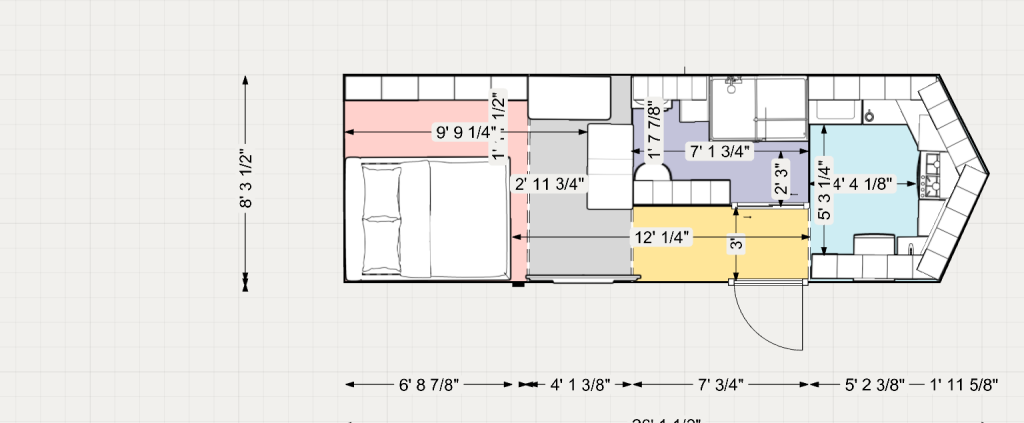
What Is a Floor Plan in Designing?

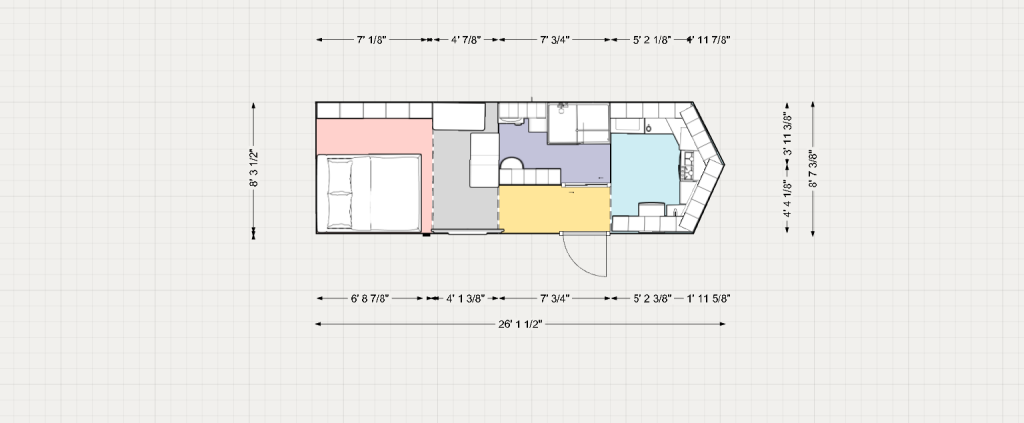
A floor plan is a scaled diagram of a room or building viewed from above. It illustrates the horizontal relationships of interior spaces, walls, and features at a single level of a structure. Floor plans are typically drawn in orthographic projection and usually represent the layout as if viewed from approximately 4 feet (1.2 m) above the finished floor.

The level of detail in a floor plan depends on the design phase. Early schematic plans may show only major spatial divisions and rough square footages, while construction‑ready plans include wall types, dimensions, fixtures, finishes, and electrical symbols. Floor plans may also include notes, material callouts, and renderings depending on the intended use.

Applications I Use for Floor Plan & Design Work

Layout

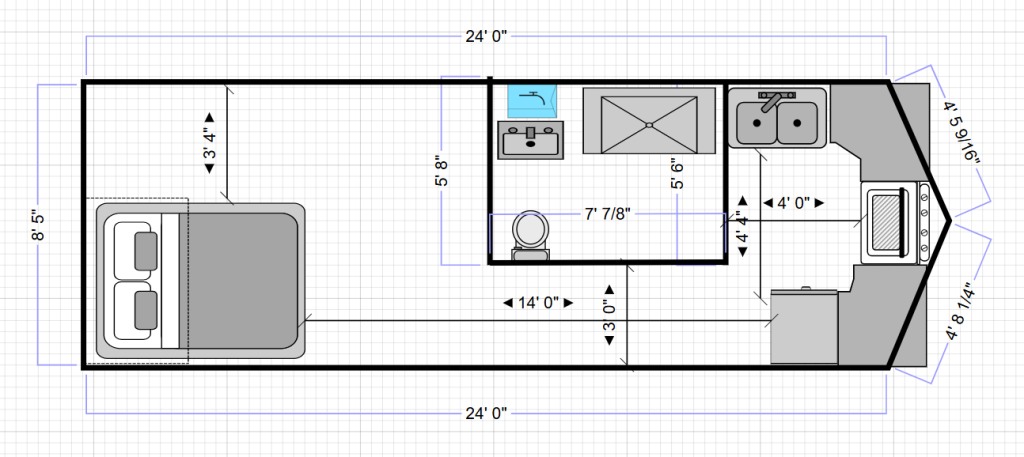
Your image shows:

  • A V‑shaped front layout for water tanks
  • A bathroom zone directly behind it
  • Shower on one side
  • Toilet on the opposite side
  • Tank depth around 3’11”
  • Total front section tank depth 8’5″
  • Another tank 3’11” behind the bathroom

This is perfectly aligned with your trailer’s:

  • 8’5″ V‑nose width
  • 18″ V‑nose depth
  • 4’5″ angled side walls
  • 8’1″ finished interior width
  • 21’2″ total interior length

Your drawing is essentially a scaled architectural version of your trailer’s front 8–9 feet.


Working interior & axes

Working interior & axes

  • Finished width: 97″ (X = 0″ driver wall → 97″ passenger wall)
  • Total length (with V): 254″ (Y = 0″ nose point → 254″ rear)
  • Rectangular box starts: Y ≈ 18″

1. Front bench / tank cabinet (under the “seating” concept)

This is your front wrap cabinet that visually acts like a bench and structurally hides the three tanks.

Cabinet footprint:

  • X = 20″ → 77″
  • Y = 10″ → 60″

That gives:

  • Room for the V‑nose angle at the very front
  • Depth for tanks + framing + access
  • A “bench” feel along the front and slightly back into the rectangular section

2. Tank positions inside that cabinet

Using:

  • 50 gal fresh: 22.25″ (X) × 14.25″ (Y)
  • 30 gal grey: 17.5″ (X) × 12″ (Y) each

All three centered left/right within the cabinet, left → right:

Left grey (30 gal):

  • X = 20″ → 37.5″
  • Y = 24″ → 36″

Fresh (50 gal):

  • X = 37.5″ → 59.75″
  • Y = 24″ → 38.25″

Right grey (30 gal):

  • X = 59.75″ → 77.25″
  • Y = 24″ → 36″

All three sit fully inside the front bench/cabinet zone (X 20–77, Y 10–60).

3. Shower (driver‑side, just aft of tank bench)

To echo that render—shower on one side, toilet on the other, bench/tanks in front—we’ll keep the shower slightly driver‑side, just behind the tank cabinet.

Assuming 36″ wide × 24″ deep:

  • X = 24″ → 60″
  • Y = 60″ → 84″

That:

  • Keeps it aligned with the tank cabinet
  • Leaves a clear passenger‑side path to the toilet
  • Gives you a nice “front bathroom zone” feel

4. Nature’s Head toilet (passenger side)

Planning box: 19″ wide × 21″ deep

Place it on the passenger side, roughly opposite the shower, with some space between toilet and front bench.

  • X = 72″ → 91″
  • Y = 60″ → 81″

So:

  • You walk into the front area
  • Bench/tank cabinet is visually ahead/angled
  • Shower is front‑left (driver side)
  • Toilet is front‑right (passenger side)

5. Quick copy block

Front bench / tank cabinet:

  • X = 20″ → 77″
  • Y = 10″ → 60″

Left grey tank (30 gal):

  • X = 20″ → 37.5″
  • Y = 24″ → 36″

Fresh tank (50 gal):

  • X = 37.5″ → 59.75″
  • Y = 24″ → 38.25″

Right grey tank (30 gal):

  • X = 59.75″ → 77.25″
  • Y = 24″ → 36″

Shower (36″ × 24″, driver side):

  • X = 24″ → 60″
  • Y = 60″ → 84″

Nature’s Head toilet (passenger side):

  • X = 72″ → 91″
  • Y = 60″ → 81″

Tanks

Fresh & Grey Water Tanks for CTC Build

I plan to use these tanks as the core of my fresh and grey water system for the CTC build.
They were chosen for their durability, simple rectangular geometry, and reliable sizing that fits the layout of my front tank cabinet.
These specs will be used throughout my planning process for weight distribution, plumbing routing, and cabinet design.
The dimensions and capacities listed here reflect the exact tanks I will install in the trailer.


50 Gallon Fresh Water Tank — T5000BPK

Brand: classAcustoms
Model: T5000BPK
Capacity: 50 gallons
Material: Polyethylene
Product Link:

View on Amazon

Dimensions
  • Length: 14.25"
  • Width: 22.25"
  • Height: 38.25"

30 Gallon Grey Water Tank — T3000‑BPK (×2)

Brand: classAcustoms
Model: T3000‑BPK
Capacity: 30 gallons each
Material: Polyethylene
Product Link:

View on Amazon

Dimensions (Each)
  • Length: 12"
  • Width: 17.5"
  • Height: 34.5"